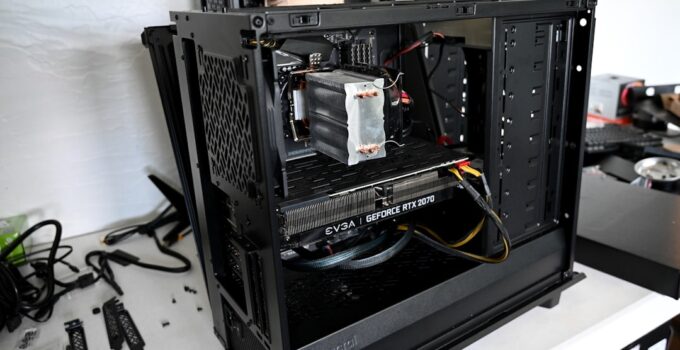
Any computer system must have Random Access Memory (RAM). It acts as the short-term memory of the system, storing information and commands that the CPU must access rapidly. Think of RAM as a desk’s workspace. Your work will be slowed down if your desk is too small because you will be moving papers around all the time.
Your computer’s performance can be greatly enhanced by upgrading its RAM, which will make it feel quicker and more responsive when handling demanding apps, multitasking, and daily tasks. From comprehending your current configuration to installing additional modules, this guide will take you step-by-step through the process of upgrading your computer’s RAM. You must ascertain what RAM you currently have before you can upgrade it. In order to determine compatibility, you must first determine the type, speed, & capacity of your current RAM modules as well as the motherboard’s specifications.
If you’re interested in enhancing your computer’s performance through hardware upgrades, you might also find value in exploring how to apply your newly acquired skills in real-life situations. For more insights on practical applications of your learning, check out this related article: How Can I Apply What I’ve Learned in Real-Life Situations?. This resource can help you understand how to effectively implement your technical knowledge beyond just upgrading your RAM.
Finding the Current RAM Specifications. There are several ways to determine how much RAM you currently have. Utilizing Windows’ System Information.
Get System Information by choosing “Properties” when you right-click on the “This PC” or “Computer” icon in File Explorer or on your desktop. Or use Windows Key + R, type msinfo32, and hit Enter. Find RAM Details: Select “System Summary” from the System Information window. Seek out entries pertaining to “Total Physical Memory” and “Installed Physical Memory (RAM).”.
You can use this to find out how much RAM is installed overall. Identify Module Type and Speed: You might need to use third-party software or refer to the documentation for your motherboard to get more specific information about the type (DDR3, DDR4, DDR5) and speed (MHz). employing Windows’ Task Manager.
If you’re looking to enhance your computer’s performance, upgrading your RAM is a great step, and you might also find it useful to explore other technical skills. For instance, learning how to use command-line tools can significantly improve your efficiency when managing files and processes. A related article that provides valuable insights on this topic is available here: how to use grep in Linux. This guide can help you streamline your workflow and make the most out of your upgraded system.
Press Ctrl + Shift + Esc to launch Task Manager. To access the “Performance” tab, click on it. In order to select Memory, click “Memory” in the pane on the left.
View Details: The total RAM will be displayed. You might have to click on the little graph or wait for it to fill in in order to view more information about things like speed and the number of slots used. Making use of macOS System Data.
To view “About This Mac,” click the Apple menu by selecting “About This Mac” from the top-left corner of your screen. The “. View Overview: You can see the total amount of RAM installed by selecting the “Overview” tab.
To view more specific information about your RAM, including its type & speed, click the “Memory” tab. Linux commands are used. For Linux users, command-line tools are useful. To use the free command, type free -h into an open terminal. This will display in a readable format the amount of RAM that has been used, free, and total.
Using the dmidecode command: Use sudo dmidecode –type memory to get comprehensive details about your RAM modules, including type, speed, and manufacturer. Motherboard compatibility check. Your motherboard, which serves as the foundation of your computer, has particular RAM restrictions. It establishes the most RAM that can be installed, the kinds of RAM that it tolerates (e.g. G.
DDR4, DDR5, and top speed. How to Find Your Motherboard Model. Windows: Look for “BaseBoard Product” or “Motherboard Product” in System Information (msinfo32). An alternative is to use CPU-Z, a free third-party tool that shows motherboard information in an easy-to-read manner. macOS: In “About This Mac,” under “System Report” (which can be accessed by selecting “More Information. “, followed by “System Report”), your model number is displayed. Linux: Try sudo dmidecode -t 2 in the terminal.
looking at the manufacturer’s website or the motherboard manual. Once you know the model of your motherboard, the best way to find out if it’s compatible is to look at the manufacturer’s official website or the manual. Along with the maximum capacity per slot and the total supported RAM capacity, they will list the supported RAM types. A Qualified Vendor List (QVL) of RAM sticks that have undergone testing & been verified to function is frequently supplied by motherboard manufacturers. Although purchasing RAM that is not on the QVL does not ensure failure, adhering to the QVL lowers the possibility of compatibility problems.
Knowledge of RAM Types (DDR3, DDR4, DDR5). RAM has changed over time. The standard is called DDR (Double Data Rate) and SDRAM (Synchronous Dynamic Random-Access Memory). Speed, bandwidth, and power efficiency all increase with each generation. DDR3: An older standard that was typically present in computers made before 2014.
The voltages are higher and the speeds are lower than those of the more recent generations. From about 2014 to 2021, DDR4 was the most widely used type in computers. Compared to DDR3, it offers more bandwidth, faster speeds, and lower voltage. The newest generation, DDR5, offers notable gains in bandwidth, speed, and power efficiency.
The more recent systems contain it. Importantly, DDR generations are not compatible. DDR3 or DDR5 modules cannot be inserted into a DDR4 slot, & vice versa. For each generation, the physical notch on the RAM stick is keyed differently to avoid improper installation.
Being aware of RAM Latency (CL) and Speed (MHz). The megahertz (MHz) unit of measurement for RAM speed indicates the number of cycles per second that the memory can execute. Faster data transfer is typically associated with higher MHz. Latency, which is frequently written as CAS Latency (CL) and a number (e.g.
A. CL16) describes the lag time between the memory controller’s request for data & the RAM module’s delivery of it. Reduced CL numbers result in faster access & lower latency. Try to select new RAM at a speed that is compatible with your motherboard.
Although it will operate at the motherboard’s maximum speed, you can frequently install RAM that is faster than what the motherboard officially supports. If you’re not replacing every module of RAM, it’s also advantageous to match its speed. However, for best performance, a system’s modules should ideally be identical. Knowing your current configuration is just as important as choosing the right RAM.
While maintaining compatibility, you must strike a balance between capacity, speed, and affordability. Choosing the Appropriate RAM Size. Your usage has a significant impact on how much RAM you require.
4GB: Enough for simple tasks like word processing and web browsing on older systems.
More is frequently needed for modern operating systems & applications. For the majority of users, 8GB is a good starting point that provides a discernible improvement over 4GB. It manages multitasking, light gaming, and daily productivity effectively.
16GB: Suitable for power users, creative professionals, & gamers who frequently run demanding apps or engage in intensive multitasking. It offers enough headroom for heavy workloads.
32GB and more: Mostly for users running virtual machines or very memory-intensive apps, professional workstations, video editors, and 3D artists.
This much RAM is not necessary for the majority of consumer PCs. Think about the amount of RAM you are using now. It’s a clear sign that you need more RAM if your Task Manager or System Information continuously displays usage that is close to maximum. acquiring RAM sticks.
Take into account these factors when purchasing new RAM. The specifications of your motherboard should be met. As previously mentioned, make sure the new RAM is compatible with your motherboard’s DDR speed and DDR generation (DDR3, DDR4, DDR5). If your motherboard is only capable of DDR3, do not buy DDR4.
Thinking about Dual-Channel or Quad-Channel Performance Kits. Dual-channel or quad-channel memory configurations are frequently supported by contemporary motherboards. Thus, a performance boost can result from the installation of two (or four) identical RAM modules in designated slots, which can effectively double (or quadruple) the memory bandwidth. Two RAM modules that are identical are needed for dual-channel.
The slots that need to be filled in for dual-channel operation are listed in your motherboard manual. Quad-Channel: Usually seen on high-end desktop (HEDT) platforms, this type of RAM module requires four identical modules. Purchasing RAM as a kit is typically advised (e.g. G.
a dual-channel 2x8GB kit) to guarantee that the modules are compatible and function as a single unit. Look for a precise match in terms of capacity, speed, & latency if you are adding RAM to an already-existing module. It is frequently preferable to buy a kit of two new, identical modules and keep them as a pair in the suggested dual-channel slots if an exact match is not available. Trade-offs between performance and budget. Brand, speed, and capacity all affect RAM costs. Generally speaking, faster RAM with reduced latency costs more.
For most users, speed and capacity must be balanced. Prioritize having enough capacity and a motherboard-supported speed unless you absolutely need the fastest speeds for professional overclocking or competitive gaming. Comparing upgrading with… Changing all of the RAM.
When upgrading, you have two main options. Adding RAM: To boost the overall capacity, you can install additional RAM modules if your motherboard allows it & you have empty RAM slots. Replacing All RAM: You will need to remove your old RAM and install new modules if your motherboard has all of the RAM slots filled or if you are switching to a newer DDR generation. If your motherboard allows it, this is also your chance to upgrade to a faster speed or type of RAM. A seamless and secure upgrade depends on your readiness before you physically work with your computer’s parts.
Getting the Tools You Need. A few things can make the process safer and easier, but you won’t need a wide range of tools to upgrade your RAM. Phillips Head Screwdriver: The side panels of the majority of computer cases are fastened with Phillips head screws. Make sure it is the right size for you.
To avoid electrostatic discharge (ESD), which can harm delicate electronic components, an anti-static wrist strap is strongly advised. Attach it to a metal object that is grounded on the case of your computer. Clean, Well-Lit Workspace: Pick a space that doesn’t have any carpets or other materials that produce static. The tiny parts and connectors will be easier to see in good lighting.
Keeping track of the screws you take out of your computer case can be made easier with a small bowl or magnetic tray. Make sure your new RAM modules are compatible with your motherboard and of the right kind. creating a data backup. Even though RAM upgrades almost never result in data loss, backing up your important files before making any hardware changes is always a good idea. This offers an additional degree of protection in the event of any unanticipated problems.
Make use of a network-attached storage (NAS) device, cloud storage, or an external hard drive. Static electricity is released. Electrostatic discharge can cause the components of your computer to burn. The best defense against this is an anti-static wrist strap.
Put the Strap on: Put the anti-static wrist strap on & fasten it firmly around your wrist. Ground yourself by fastening the strap’s other end to your computer case’s unpainted metal surface. By continuously grounding you, any static electricity that may accumulate is dispersed. Regularly touch an unpainted metal portion of the computer casing before touching any internal parts, even if there isn’t a strap. shutting down and unplugging.
Shut Down Your Computer: From your operating system, do a thorough shutdown. Avoid simply putting it to sleep. Unplug Power Cable: Take out your computer’s main power cord from the rear. Disconnect Peripherals: Unplug all external devices, including your network cable, USB drives, keyboard, mouse, and monitor. In addition to preventing unintentional damage, this facilitates computer mobility.
Open the Case: One or both side panels must be removed from the majority of desktop computers. Usually, this entails taking out a few screws on the case’s rear. If you’re not sure, refer to your computer’s handbook. Additional Discharge: To make sure you are completely grounded, touch an unpainted metal portion of the chassis after the case has been opened.
The upgrade process is centered around this. Take your time and be sure to carefully follow these steps. Finding the RAM Slots. Your motherboard has slots specifically designated for RAM modules.
These slots are typically long and thin, & they are frequently located next to the CPU socket. Usually, each end has a tiny clip. RAM slots on desktop motherboards are typically two or four. They frequently have distinct colors to show dual-channel pairings.
You can find out which slots are best for your motherboard’s performance by consulting the manual. Laptop motherboards: Usually accessible from the underside of the laptop through a small panel or by removing the entire bottom cover, these motherboards have fewer RAM slots. One or two RAM slots are common in laptops.
Taking Out Current RAM (If Required). The old modules must be taken out before replacing the outdated RAM. Release the Clips: Apply light pressure to the clips on either end of the RAM slot. Lift the Module: A small pop-up of the RAM module should occur.
Pull it straight out of the slot with caution. Do not move it from side to side. setting up new RAM. The bottom edge of every RAM module has a notch that lines up with a key in the RAM slot.
This keeps the RAM module from being inserted incorrectly. Make sure the new RAM module’s notch and the key in the slot line up. Insert the Module: After positioning the RAM module into the slot, simultaneously press firmly & evenly downward on both ends. It ought to feel as though it’s coming together.
Secure the Clips: The RAM module should be secured by the clips on either side of the slot pivoting inward as you apply pressure. If not, you might have to manually push them in gently. A noticeable click should be audible, and the module seat should feel secure. If you are installing more than one module, repeat the procedure for each module, making sure to insert them into the appropriate slots for dual-channel or quad-channel operation according to the motherboard manual.
Reconnecting and closing the case. After the RAM has been installed. Replace the Side Panel: Using the screws you previously removed, carefully reattach the side panel of the computer case. Reconnect Power and Peripherals: Plug in your keyboard, mouse, monitor, and any additional devices. Reattach the main power cord after that.
Following the actual installation, it’s critical to confirm that the new RAM is detected & operating as intended. Computer booting up. Power On: Switch your PC on. Pay Attention to the Boot Process: When your computer first boots up, it might run a memory test, which could take a little longer than usual. Optional but advised: Access BIOS/UEFI: To access your system’s BIOS or UEFI settings, press a designated key at startup, usually Del, F2, F10, or F12.
This interface will show details about your hardware, such as the speed and capacity of the RAM that has been detected. Check to see if the total RAM displayed corresponds to what you installed. In your operating system, check the RAM. You can verify the upgrade once your computer has powered on and launched your operating system. Windows.
To view the properties of your system, right-click “This PC” or “Computer,” then choose “Properties.”. The updated total should now appear in “Installed physical memory (RAM).”. Task Manager: Press Ctrl + Shift + Esc to launch Task Manager.
Then, select “Memory” from the “Performance” tab. It’s time to update the overall capacity. macOS. About This Mac: Select “About This Mac” from the Apple menu.
It should show the updated total in the “Memory” section. Linux. Command free -h: Type free -h into a terminal window. Your updated RAM capacity should be displayed in the “total” column. A memory diagnostic tool is being used.
Running a specialized memory diagnostic tool can identify minor errors or possible issues, even though your operating system recognizing the RAM is a positive sign. Windows Memory Diagnostic: This tool is pre-installed on Windows. In the Start menu, look for “Windows Memory Diagnostic” & then follow the on-screen directions. Typically, it will ask you to restart your computer in order to administer the test.
Third-Party Tools: MemTest86 is a well-liked and reliable bootable memory diagnostic tool that offers comprehensive testing without requiring the operating system. The diagnostic tool may indicate a motherboard problem, a malfunctioning RAM module, or an incorrectly seated module if it reports errors. In such circumstances, you might have to test each module separately, reseat the RAM, or think about swapping the RAM.
An enjoyable do-it-yourself project that can revitalize outdated systems and improve the functionality of more recent ones is upgrading the RAM in your computer. You can significantly increase your computer’s speed and responsiveness by paying attention to the installation instructions, selecting compatible RAM, & being aware of your current hardware. Always put safety first by grounding yourself & taking your time.
Like a well-organized workstation, a well-equipped computer with enough RAM enables you to complete tasks quickly and with less frustration.
.